
TestFlight Installation Guide
Thanks for being a tester, your happiness, and feedback are really important to me.
Step 1: Check Your Email
You should receive an email invitation to test Neurise via TestFlight.
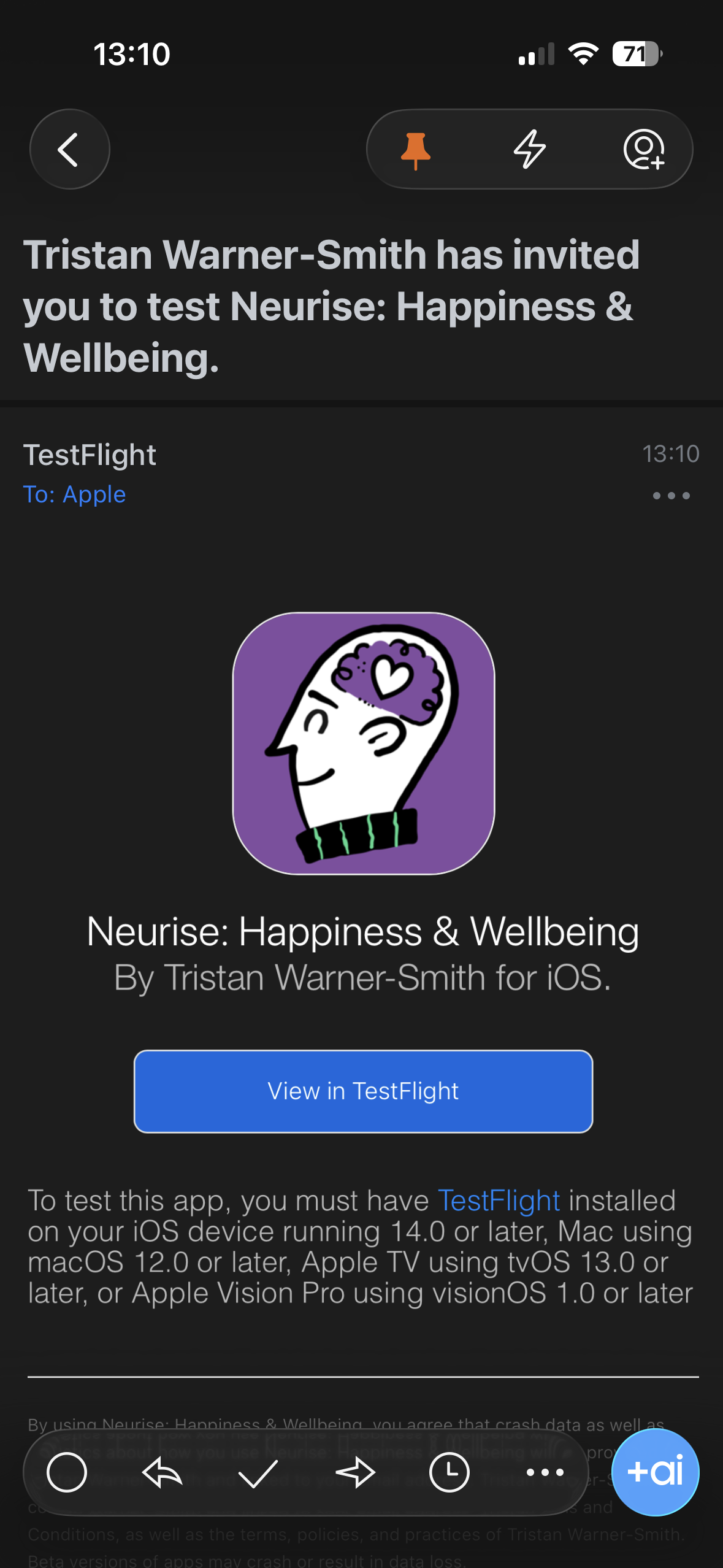
Step 2: TestFlight Information
Tap on “View in TestFlight” or “Start Testing” in the email to begin the installation process.
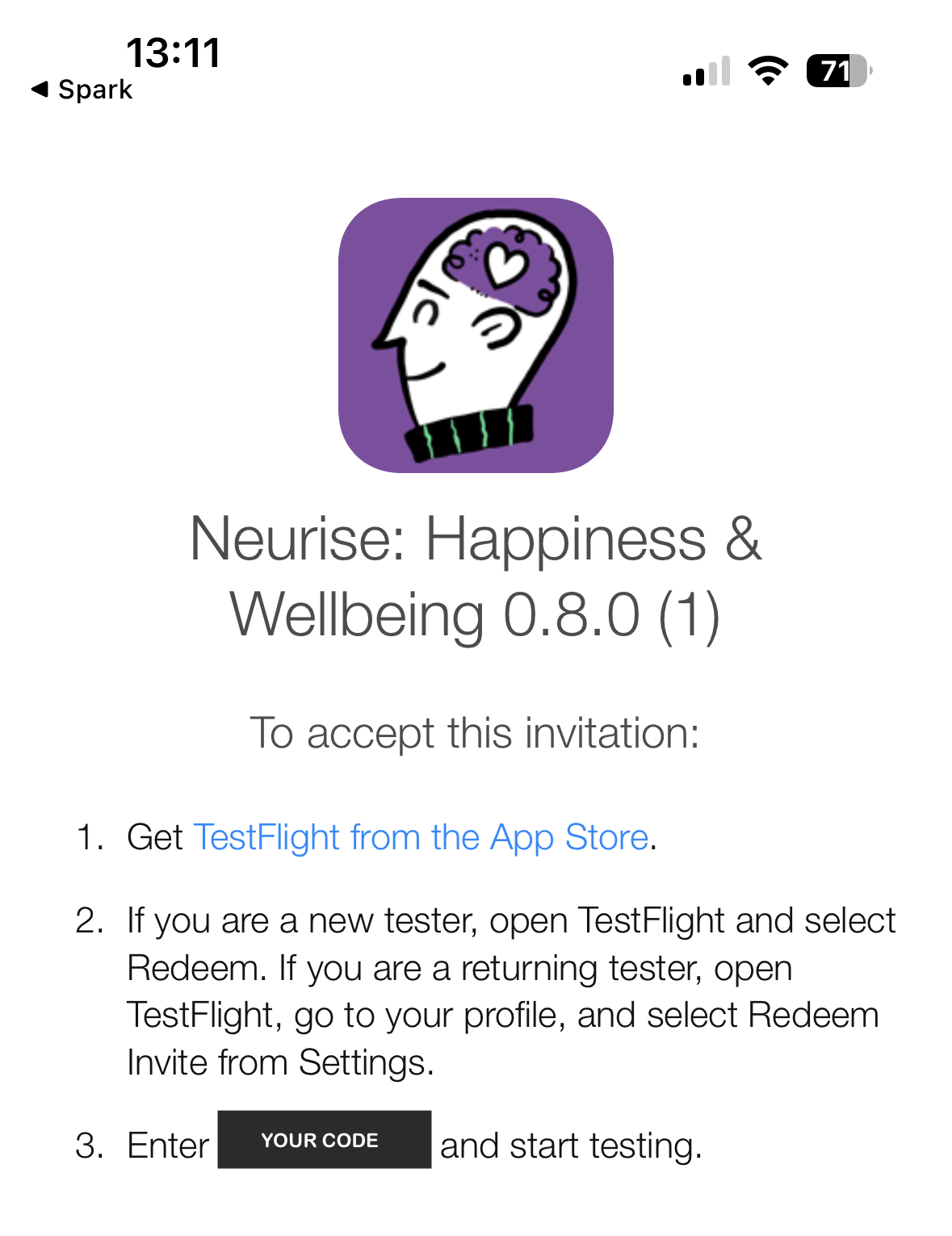
Step 3: Install TestFlight
If you don’t have TestFlight installed yet, you’ll be directed to the App Store to install it first.
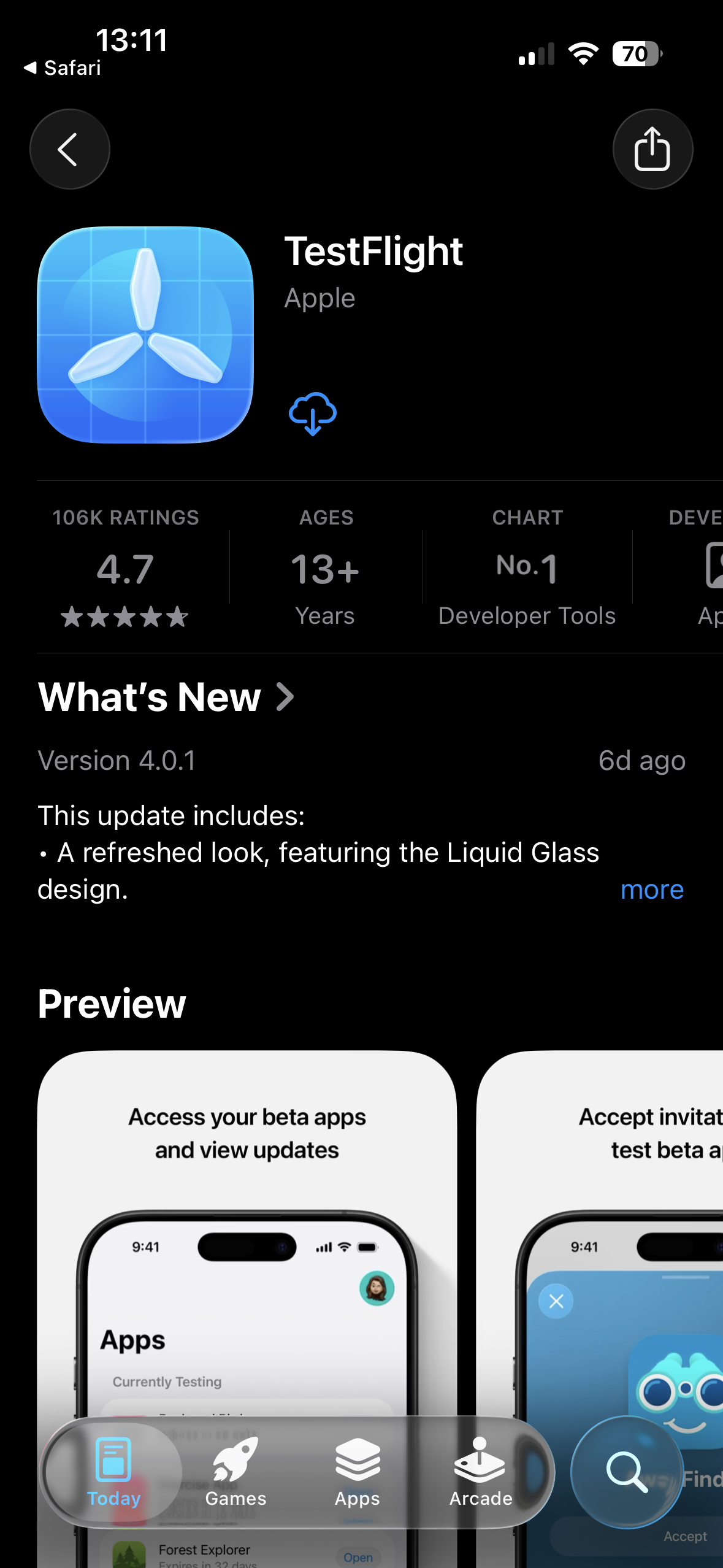
Step 4: Open TestFlight
Once TestFlight is installed, open the app.
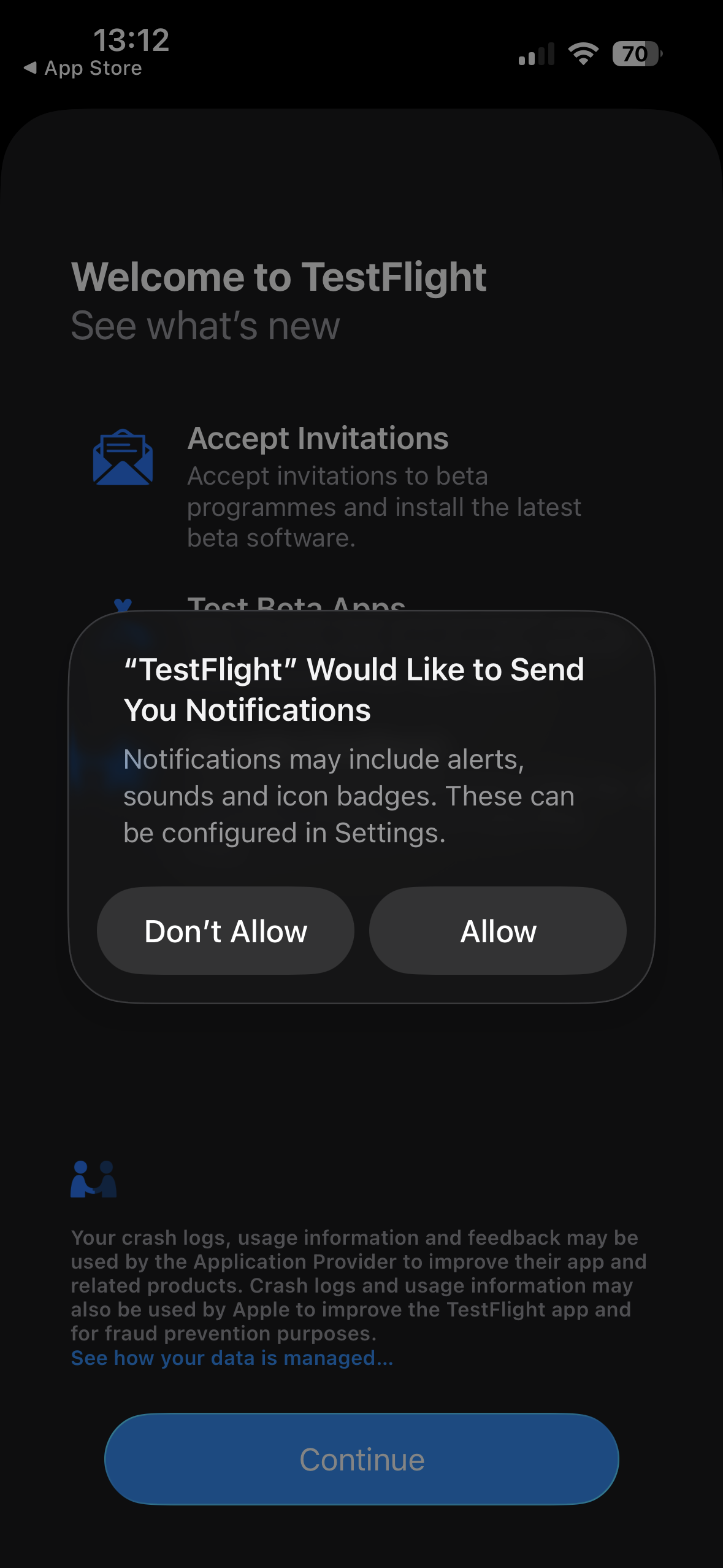
Step 5: Redeem Your Code
If prompted, you may need to redeem your invitation code in TestFlight.
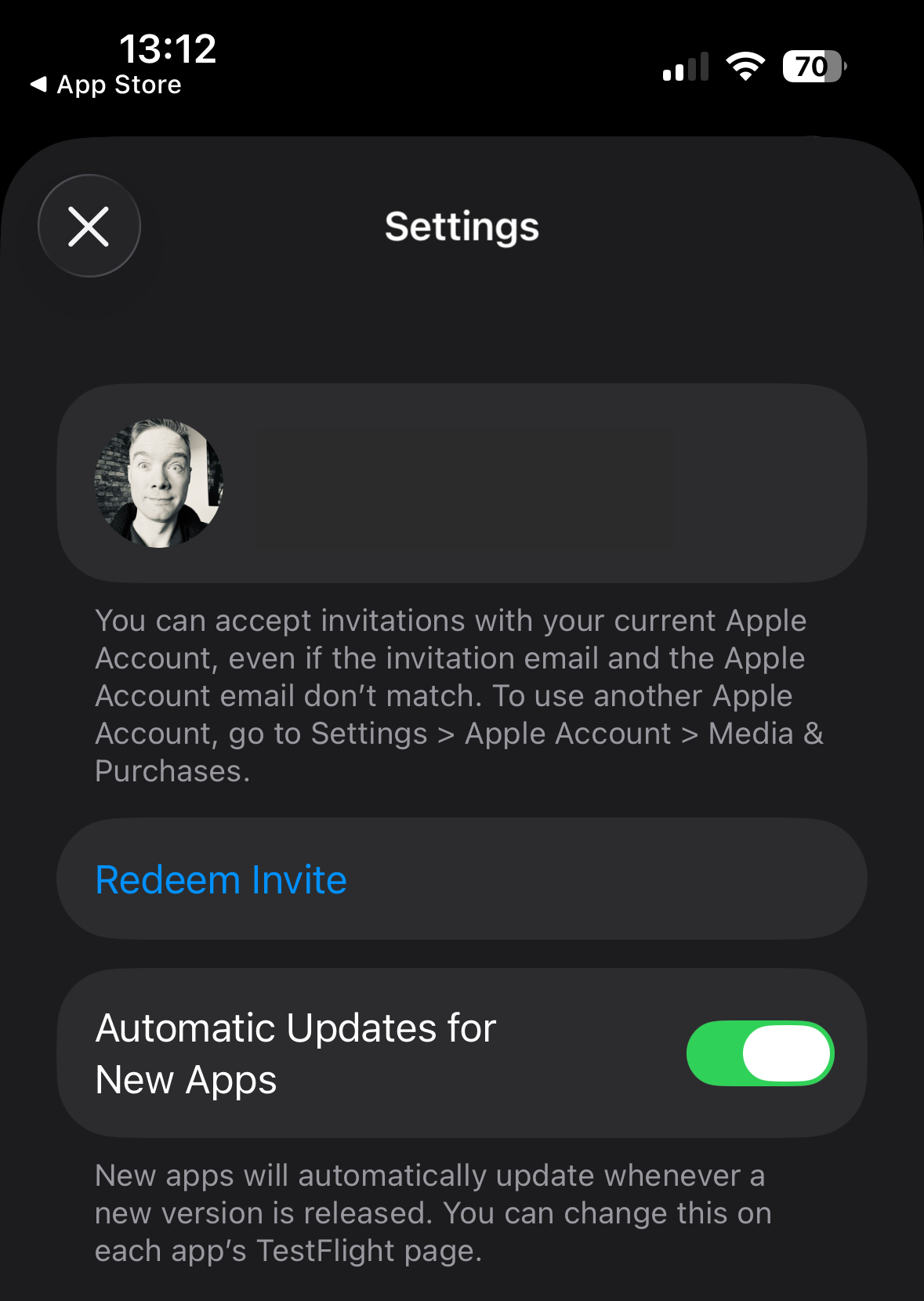
Step 6: Install Neurise
You’ll see the Neurise app ready to install in TestFlight. Tap “Install” or “Accept” to proceed.
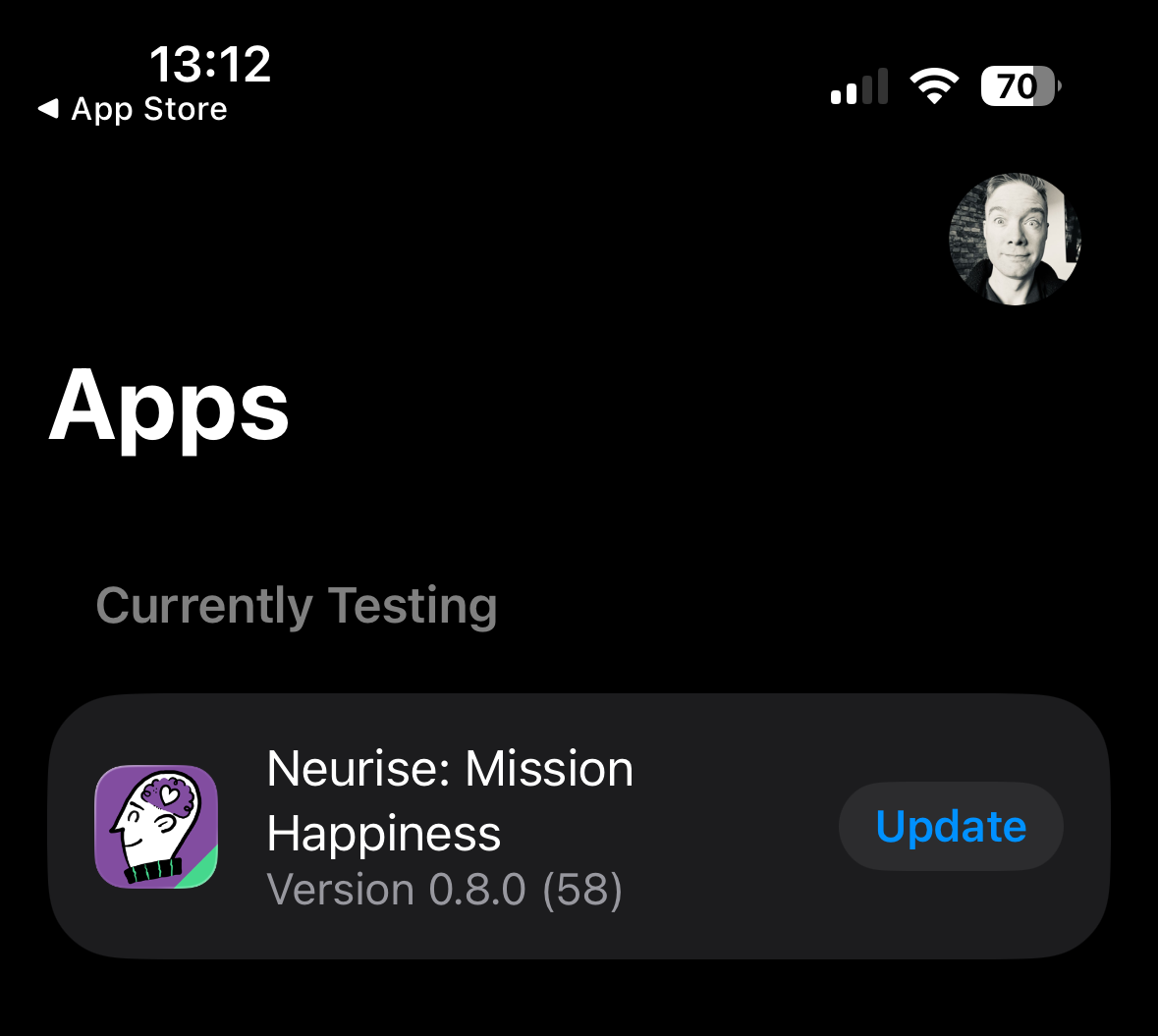
Step 7: Begin Installation
The app will begin downloading and installing on your device.
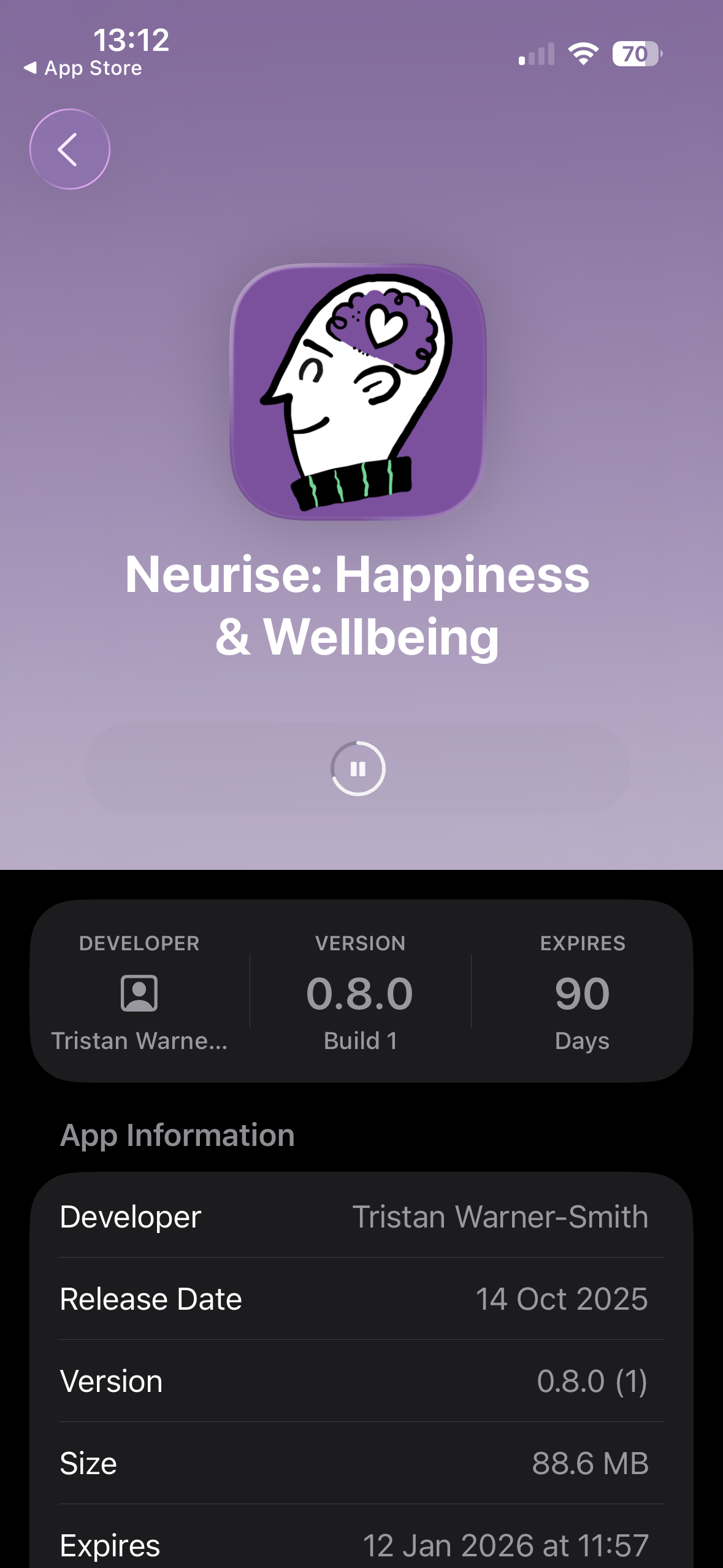
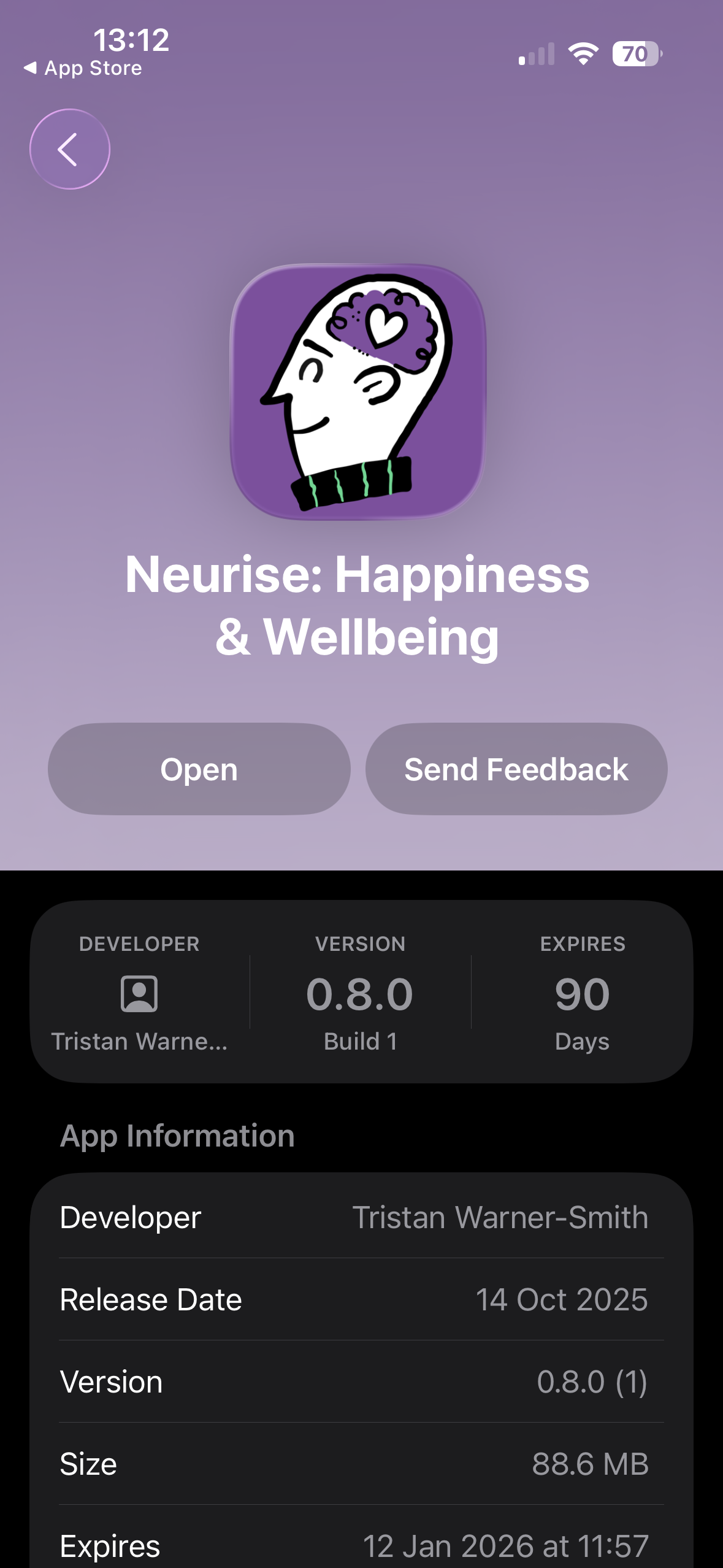
Step 8: Open the App
Once installed, tap “Open” to launch Neurise and start testing!
Have Feedback?
- Check the Settings Page (tap the person icon top right in the app) and reach out via email to let me know
- Or send me a message on Facebook, email, phone - whatever you have for me
- Or request features via the app, we have a “Request Features” button that lets you describe what you want, vote on other feature requests etc
Need Help?
If you encounter any issues during installation or while testing, please reach out to me or email us at hello@neurise.app.
Thank you for helping make Neurise better!